
I work on People by Sniff, which comes up near the end. The export steps below come from LinkedIn’s own Help Center, checked on October 19, 2026. LinkedIn changes its menus from time to time, so the labels you see may differ slightly.
How to export your connections, step by step
LinkedIn’s Help Center describes the same route in its export connections and download your data articles. Do this in a web browser on a computer:
- Click the Me icon at the top of your LinkedIn homepage.
- Select Settings & Privacy from the dropdown.
- Click Data privacy in the left pane.
- Under How LinkedIn uses your data, click Download your data. Older LinkedIn pages call this Get a copy of your data; it’s the same setting.
- Choose the larger data archive, which LinkedIn describes as including connections along with other account data.
- Select Request archive.
- Watch your primary email address. LinkedIn sends a link there; open it and download the file.
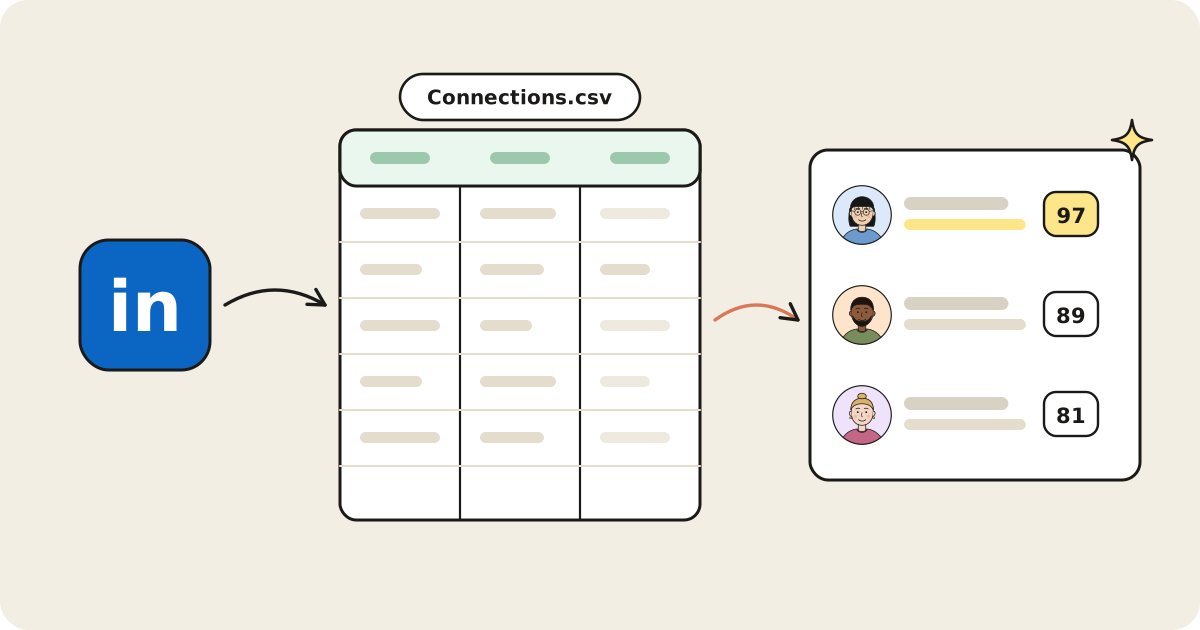
Inside the download, look for the Connections file. It’s a CSV, so it opens in Excel, Google Sheets, Numbers or any text editor.
Specific categories vs. the larger archive
LinkedIn gives you two kinds of download. You can pick specific categories of data, which it says are emailed within minutes, or the larger download, which it says arrives within 24 hours. Its Help Center currently lists Connections among the data in the larger archive, under categories “available within 48 hours,” and its export article tells you to pick the larger archive. So plan on up to a day or two rather than minutes.
Many older guides show a quick “Connections” checkbox. If your screen shows Connections as its own option, picking it is fine. If not, request the larger archive.
Two timing details matter. The download link stays active for 72 hours, so grab the file when the email arrives. And LinkedIn says to download your data only on a personal computer, not a public one.
Can you export on mobile?
Not today. LinkedIn’s download page says the feature is “not available on mobile.” If you’re on a phone, use a computer instead; the file is easier to work with there anyway.
What’s in the connections file
LinkedIn describes the Connections data as containing, for each of your 1st-degree connections:
- First and last name
- Public profile URL
- Email address (only if they allow it; see below)
- Company
- Position
- Connection date
That’s the whole list. There’s no location, industry, school, work history or mutual connections, and nothing about how well you know each person.
Why most email addresses are blank
This is the most common surprise. LinkedIn says members choose in their privacy settings whether others can download their email address, and you’ll only see emails for connections who allowed it. If a column is mostly empty, nothing went wrong with your export.
The setting lives under Settings & Privacy > Visibility > Email visibility, where a toggle controls whether your connections can download your primary email in their data exports. Check your own while you’re there.
Limits to know about
- 1st-degree only. LinkedIn says you can’t export contacts who aren’t 1st-degree connections. For the difference between degrees, see 1st, 2nd, and 3rd-degree connections, explained.
- Some characters don’t survive. LinkedIn notes that the CSV and vCard formats don’t support all characters, so names in extended character sets such as Chinese, Japanese or Hebrew aren’t supported.
- Only your own data. LinkedIn won’t include People You May Know or Who’s Viewed Your Profile data.
- It’s a snapshot. The file reflects the day you exported. Company and position go stale as people change jobs.
What to do with the CSV
Sort and filter it in a spreadsheet
Open the file, freeze the header row and turn on filters. If the first few rows hold notes instead of column headers, delete them so filtering works. Then:
- Filter by Company to see everyone you know at a target account or employer. A pivot table that counts rows by company shows where your network is densest.
- Search Position for keywords like “founder,” “recruiter” or “VP” to pull out a role. Titles are free text, so try a few spellings.
- Sort by connection date to find people you met recently while the conversation is still fresh, or long-standing connections you haven’t spoken to in years.
- Add your own columns for notes, how you know each person, or a follow-up date.
Import it into a CRM
Most CRMs and contact managers accept a CSV import. Map name, company and position to the matching fields, and use the profile URL as the unique key, since so many emails are missing. Expect a lot of records with no email; that’s normal for this file.
Re-export on a schedule
Because the file is a snapshot, export again every few months. Comparing two exports by profile URL shows who changed company or title, which is a good reason to reach out. We cover that in more depth in how to track job changes in your LinkedIn network.
Search it with AI
You can upload the CSV to a general AI assistant and ask questions like “who here works in fintech?” It helps, but the answers are only as good as six columns of data: no shared history, no recent activity, no sense of who you actually know well. Some tools are built for this. Happenstance, for example, takes your LinkedIn data export as an upload and makes it searchable alongside its other sources.
People by Sniff works differently: you connect LinkedIn directly, so there’s no export to request or refresh. Your connections are indexed with role, company, shared history and activity. Ask in plain English and you get a ranked list of connections, each with the reason they made the list, ordered by a power score that weighs relationship strength, recent activity and relevance. It never messages anyone for you, and your network stays private. There’s a free plan with a daily search allowance; Pro is $99 a month or $990 a year. For how this compares with scrolling and filtering by hand, see AI network search vs. manually scrolling LinkedIn.
If you need people beyond your 1st-degree connections, the export can’t help; LinkedIn’s own search can. Our guide to LinkedIn search techniques covers how.
Use the file for yourself, not for a mailing list
Your connections agreed to connect on LinkedIn, not to join your newsletter. Treat the export as a private reference: keep it somewhere secure, don’t share it, and don’t load it into a bulk email tool. If you want to reach someone, write to them one at a time, with a reason that’s about them.
Sources
- LinkedIn Help: Export connections from LinkedIn, Download your data, Manage who can see your email address
- Happenstance: for LinkedIn
- All checked October 19, 2026.